Google Ads automation: what to hand over and what to keep
Quick answer: Google Ads automation is mostly features that let Google's AI make decisions in your account: Smart Bidding sets bids, broad match and AI Max for Search choose searches, Performance Max picks channels, and auto-apply recommendations apply Google's suggestions once you opt in. Automated rules and Google Ads scripts are the other kind, automation you write yourself and fully control. Hand Google the bids once conversion tracking is right, test AI Max and Performance Max with their controls set, and keep the goal, the budget and your brand in your own hands, with auto-apply mostly off. Some of it is on by default, such as AI Max in new Search campaigns and final URL expansion in Performance Max, so check what's switched on and read the change history for what Google changed by itself.
I've spent 12 years in PPC and managed over $100M in Google Ads spend, and like everyone in paid media I've lived a version of this: Google auto-applying recommendations nobody asked for, and changes that never showed up in the change history. This is where I draw the line between what I hand Google and what I keep, feature by feature, and how to check what Google has switched on in your accounts.


Google Ads automation is mostly Google's AI making decisions in your account, and some of it is on before you ask.
Smart Bidding sets your bids, and broad match and AI Max for Search decide which searches you show for. Performance Max decides where the money goes across Google. And once an account is opted in, auto-apply recommendations change it regularly, without asking again.
Most of it is worth using, as long as you're the one who switches it on and sets its limits. Below is what I'd hand Google and what I'd keep, feature by feature, what Google switches on by itself (with dates), and how to see what it changed.
Google Ads automation, feature by feature
Google Ads automation comes in two kinds. Google's own AI decides inside the auction or the account: Smart Bidding, broad match, AI Max, Performance Max, text customisation, final URL expansion and auto-apply. Then there's automation you write yourself, automated rules and Google Ads scripts, which only do what you tell them.
The split is easier to say than to stick to. Google gets the decisions it makes auction by auction, from signals you can't see. You keep the goal, the budget, your brand, your landing pages and anything that changes the account without asking.
| Feature | Google decides | You keep | Use it when | Skip it when |
|---|---|---|---|---|
| Smart Bidding (Target CPA, Target ROAS, Maximize conversions, Maximize conversion value) | The bid in every auction | Which conversions count, the target and the budget | Conversion tracking counts what the business values | Conversions are broken, or count the wrong thing |
| Broad match | Which searches match each keyword | The keywords, the negatives and a weekly read of the search terms | The campaign runs on Smart Bidding with enough conversions | You bid manually or for clicks |
| AI Max for Search | Extra searches, rewritten headlines and descriptions, and landing pages | Each of its three switches, plus brand and URL controls | You can test it as an experiment on a campaign with conversion-based Smart Bidding | Query control matters more than reach, as on brand or exact-match campaigns |
| Performance Max | Channels, placements, searches and which assets to combine | Negatives, brand exclusions, channel priorities and final URL expansion | You have a clear conversion goal and assets for every channel | You need full control of where each ad shows |
| Text customisation and final URL expansion | New headlines, descriptions and landing pages | Whether they're on, and which URLs are excluded | Every page on the site is one you'd happily advertise | Claims need sign-off, or the site has pages you'd never pay to send people to |
| Auto-apply recommendations | Which eligible recommendations to apply, from the types you opt in to | Which types, if any | A type only changes ad rotation or reporting (see the verdicts below) | A type touches bid strategies, targets, keywords or networks |
| Automated rules and scripts | Nothing: they run your logic | All of it | You want an alert or a cap on a timetable | A rule would fight Smart Bidding over bids |
| Ask Advisor | Suggestions, and changes with your approval | The approval | You want a quick answer in an English-language account | You work in a manager (MCC) account, where it isn't available |
This page covers Google's own automation. Third-party software is compared in the best AI tools for Google Ads, and running Google Ads from Claude or ChatGPT has its own guide, AI PPC management.
Where Ask Advisor fits
Ask Advisor is Google's agent inside Google Ads, built with Gemini and in beta since May 2026 for English-language accounts. Its help page says it can implement the changes it suggests with your approval.
Google's Ask Advisor product page says two things: that it "will seek your approval before completing actions or making changes to your account", and that it "cannot execute account changes on your behalf". Check what it offers in your own account before you plan around it. For agencies that settles it: Ask Advisor isn't available in MCC accounts, so it works one client account at a time.
What Google switches on in your account without asking
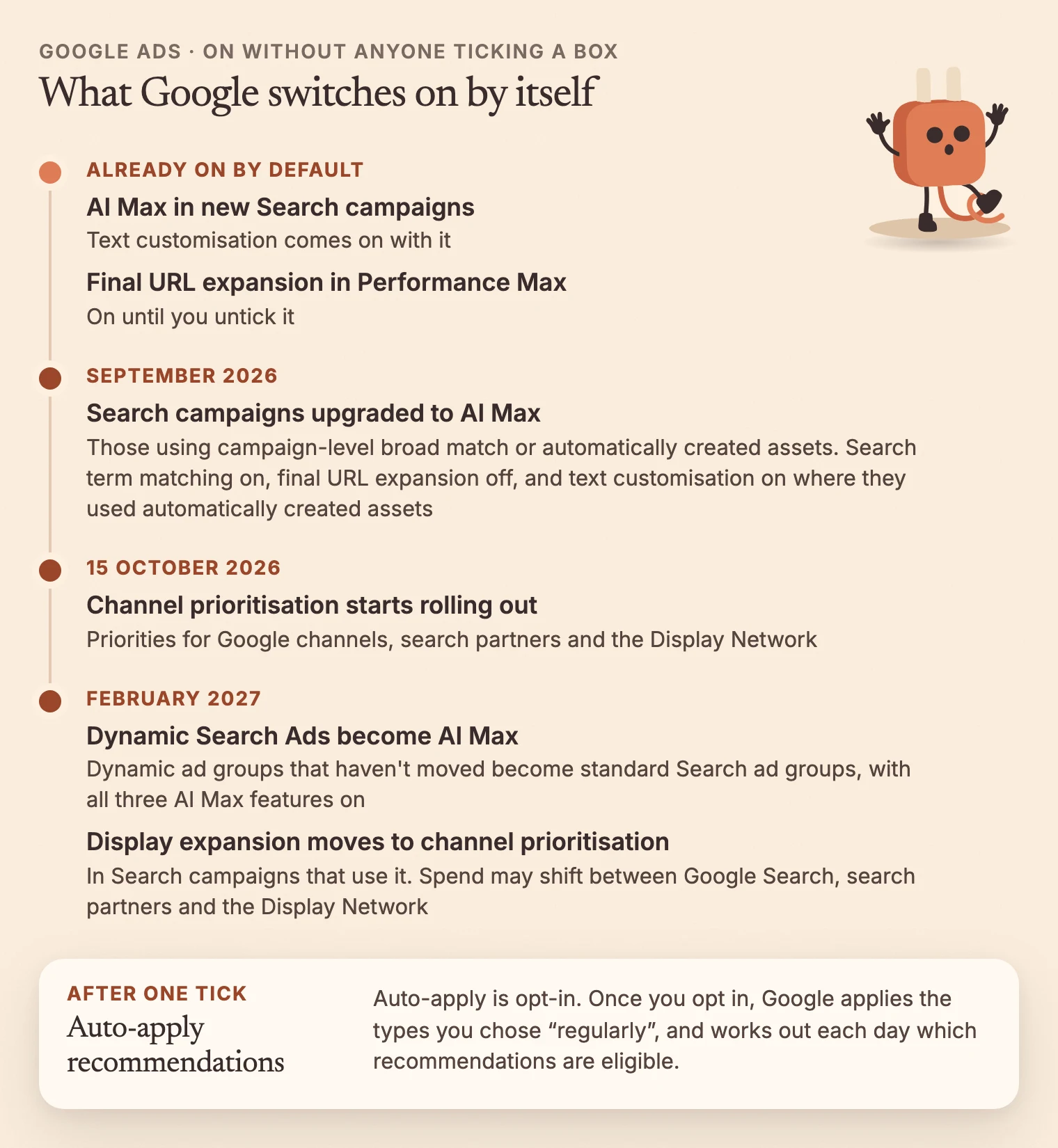
Some Google Ads automation arrives on by default, and some arrives through an upgrade Google runs for you. This is what has switched on, or will, without anyone ticking a box, plus the one setting that needs a single tick:
- AI Max in new Search campaigns. Google's help page says "New Search campaigns have the AI Max feature turned on by default", and text customisation is enabled by default with it.
- Final URL expansion in Performance Max. It's on by default in Performance Max campaigns until you untick it.
- September 2026: the AI Max upgrade. From 1 September, Google upgraded Search campaigns using campaign-level broad match or automatically created assets to AI Max, rolling out through the month. Per Google's developer blog, upgraded campaigns got search term matching on and final URL expansion off, plus text customisation on if they had used automatically created assets.
- February 2027: Dynamic Search Ads. Google's upgrade for Dynamic Search Ads begins in February 2027. Dynamic ad groups that haven't moved become standard Search ad groups with all three AI Max features on, final URL expansion included, and their URL controls kept. Google is also removing the option to create new DSA ad groups.
- February 2027: Display expansion. Search campaigns with Display expansion move to channel prioritisation and budget allocation, and spend may shift between Google Search, search partners and the Display Network. To keep your current setup, Google says to set the Display Network to Low priority with a 50% daily budget allocation. From then, Google says, the Display Network "will no longer serve on Search campaigns utilizing the Target Impression Share bid strategy".
- Auto-apply, after one tick. Auto-apply recommendations are opt-in. Once they're on, Google applies the chosen types "regularly" and works out each day which recommendations are eligible.
None of this is hidden. Google announces it on its blog and help pages. It's just easy to miss in a busy week, and a Search campaign you create today starts with AI Max on.
Auto-apply recommendations in Google Ads: a verdict for each group
Auto-apply recommendations let Google apply the recommendation types you pick without asking each time. Auto-apply is set per account, and Google sorts the types into four groups.
Google states two limits on its auto-apply page. Auto-applying recommendations "won't increase your budget", and since 26 January 2026 the "Add responsive search ads" recommendation no longer writes new responsive search ads for you. Bid strategies, targets, keywords, broad match, search partners and Display expansion are all still on the list.
| Group (Google's name) | What's in it | Verdict | Why |
|---|---|---|---|
| Ads and assets | Improve your responsive search ads, add dynamic search ads, use optimized ad rotation | Optimized ad rotation can stay on. The rest off | Ad copy should pass a person (and sometimes a legal team) before it runs. Optimized rotation only decides which of your own ads shows more often |
| Bidding | Switch to Maximize clicks, Maximize conversions, Target CPA, Target ROAS or Target impression share, and set or adjust CPA and ROAS targets | All off | The strategy and the target come from your margin, which Google can't see. A new strategy also puts the campaign into Learning |
| Keywords and targeting | Add keywords and broad match keywords, search partners, Display expansion, targeting expansion, audiences, and removing redundant, non-serving or conflicting keywords | Off, except audience segments for reporting | These change what you pay for and where your ads show, and a 'conflicting' negative is often there on purpose. Audience segments for reporting only add data |
| Measurement | Upgrade your conversion tracking | Off, and review the upgrade yourself | A change to what you measure changes what Smart Bidding chases |
How to turn off auto-apply recommendations
- Open Recommendations from the Campaigns menu in Google Ads.
- Select Auto-apply settings.
- On the Manage tab, untick each type you want off, then select Save.
- On the History tab, check what has already been applied, and select Disable on any type that's still running.
You can also see the current settings under Admin, then Account settings, in the Auto-apply dropdown (Google's steps for managing auto-apply). Auto-apply is set per account, so do this in every account you manage.
Optimisation score and the recommendations behind it
Optimisation score is Google's "estimate of how well your Google Ads account is set to perform", from 0 to 100%. Google also says an account "can reach an optimization score of 100% by applying or dismissing all recommendations", and that optimisation score isn't used by Quality Score.
So the score measures how closely you follow Google's advice. It says nothing about whether the business made money, and that's the only thing I'm judged on. Dismissing a recommendation you've thought about lifts it as well (worth knowing before the next call about your score).
Read each recommendation, apply what fits the account, dismiss the rest, and note why for the next time it comes back. With Google Ads connected to Claude or ChatGPT through AdPlug (set-up further down), the first pass is one prompt:
Use AdPlug to go through Google's recommendations on my account: which would help, which would just spend more, and which I should dismiss. Preview what you'd apply or dismiss.
Smart Bidding: hand Google the bids, keep the goal
Smart Bidding is Google's auction-time bidding. Target CPA, Target ROAS, Maximize conversions and Maximize conversion value set a bid for every auction, from signals you can't see. Maximize clicks and Target impression share are automated too, but Google says they don't include auction-time bidding.
Hand Smart Bidding the bids once your conversion data is clean. Keep everything it can't know:
- Which conversions count. Smart Bidding chases whatever you mark as primary. Count a whitepaper download the same as a demo request and it'll fill your CRM with very cheap leads who only wanted the PDF.
- The target. A target CPA or ROAS comes from your margin and what a customer is worth to the business, and neither is in the account.
- The budget, which is a business decision, not a bidding one.
- The blips Google can't predict. Seasonality adjustments are for short events (Google says they're ideal for events of 1 to 7 days), and data exclusions tell Smart Bidding to ignore days when conversion tracking broke.
Google lets Target CPA start with no conversion history, and recommends judging it on the last 30 days, with at least 30 conversions. Target ROAS needs at least 15 conversions in the past 30 days for Search and Shopping campaigns.
The learning period: what resets it, and what doesn't
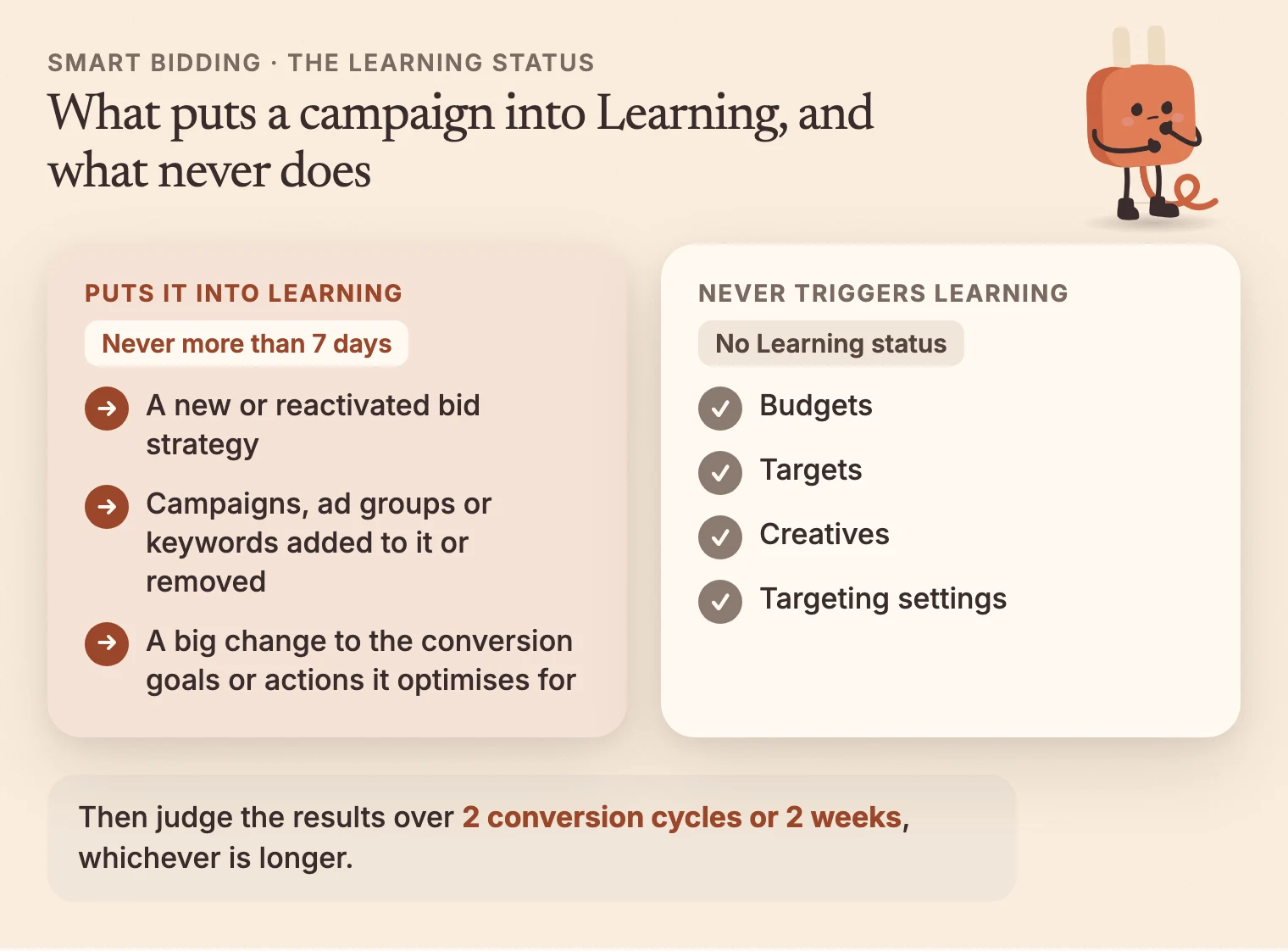
If you learned that changing a target sends a campaign back into learning, Google's help page on the Learning status says otherwise. Changes to budgets, targets, creatives or targeting settings never trigger it. Learning "never lasts more than 7 days", and Google gives three causes:
- A new strategy: the bid strategy was created or reactivated.
- A composition change: campaigns, ad groups or keywords were added to or removed from the bid strategy.
- A goal change: the conversion goals or actions it optimises for changed significantly.
The Learning label isn't the whole story, though. Google says Smart Bidding typically settles on a new goal within 1 to 2 conversion cycles (the time from a click to a conversion), and suggests judging it over 2 conversion cycles or 2 weeks, whichever is longer. So change one thing, then leave it long enough to read.
Broad match with Smart Bidding
Google pairs the two on purpose. Its broad match page says "It's critical to use Smart Bidding with broad match", and the campaign-level broad match setting is only available on conversion-based Smart Bidding. On manual or click bidding, broad match buys a wider set of searches with nothing steering it towards the ones that convert.
With Smart Bidding on, broad match is worth testing, as long as someone reads the search terms every week and adds negatives. Without that habit, phrase and exact are the safer choice.
Google Ads automation on a small budget or few conversions
Small budgets are harder than big ones. The biggest account I've run, around £1.8M a month, was easier than a £4k one.
A big account gives the algorithm enough volume to learn fast, and enough room to be wrong for a week and recover. On a small budget the algorithm takes forever to collect enough conversions to learn from, and every mistake costs a bigger share of the month. So the order you hand things over matters more:
- Fix what counts first. One primary conversion the business values, and everything else secondary. For lead generation, import offline conversions such as qualified leads, so Smart Bidding learns from the leads sales wants.
- Pool the data. Fewer campaigns, or one portfolio bid strategy shared across several, give Smart Bidding more conversions per strategy to learn from.
- Bid for clicks until there are conversions to bid on. Maximize clicks with a maximum CPC limit keeps costs in check while conversion data builds. Then move to Maximize conversions, and add a target once Google's own bar for judging it is in sight (30 conversions in 30 days for Target CPA).
- Keep broad match and AI Max off. Both lean on conversion-based Smart Bidding, and with few conversions there's little to steer them.
- Keep auto-apply off. On a small budget, a few auto-applied broad match keywords can take a real share of the month.
AI Max for Search: the three switches, and which to keep
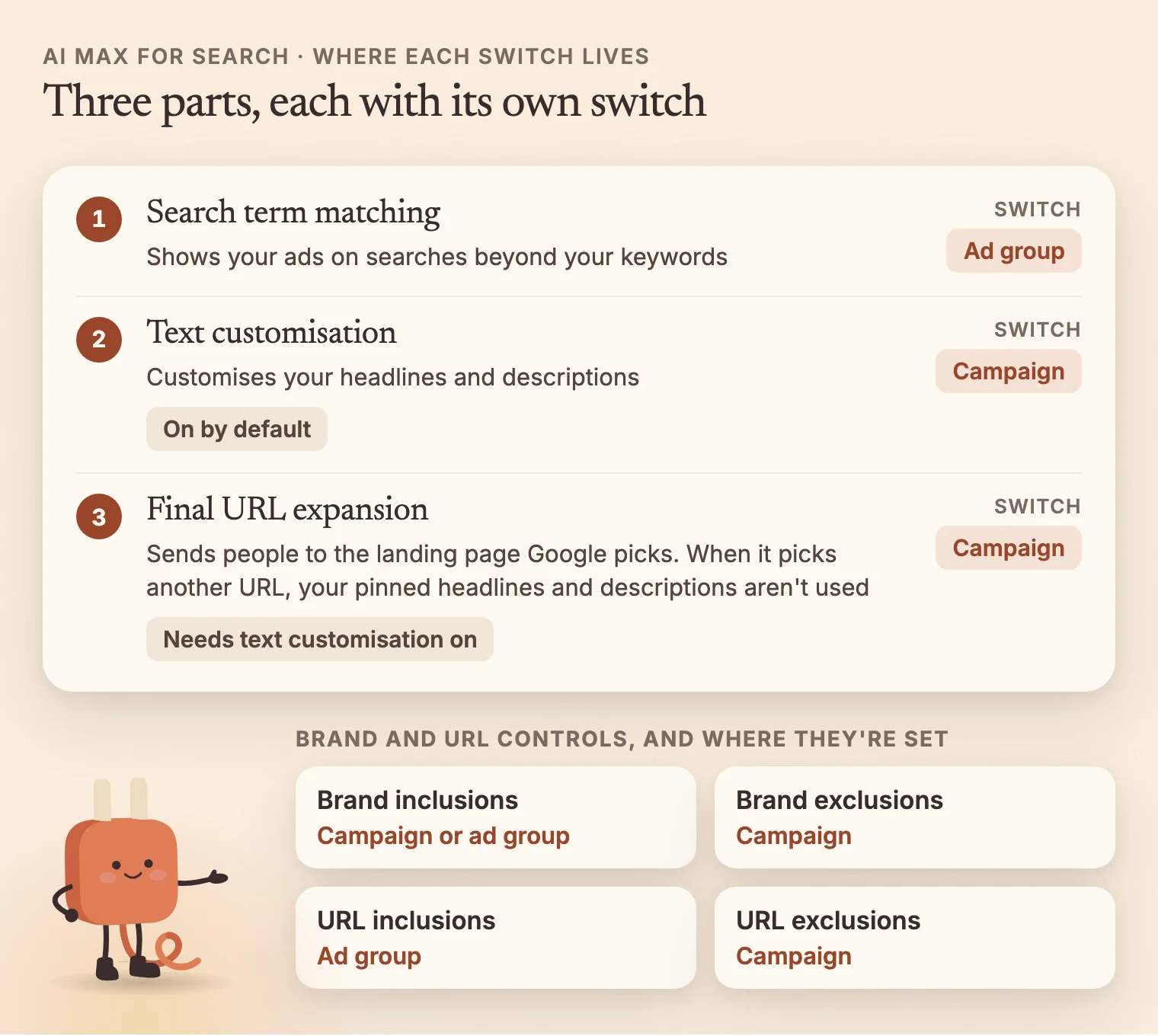
AI Max for Search adds three things to a Search campaign: search term matching beyond your keywords, text customisation of your headlines and descriptions, and final URL expansion, which sends people to the landing page Google picks. Google says AI Max's features need conversion-based Smart Bidding "in order to function effectively".
Each part has its own switch, at a different level (Google's AI Max controls):
- Search term matching: on or off for each ad group.
- Text customisation: on or off for each campaign. Text customisation is the new name for automatically created assets, and Google says its assets only serve when they're predicted to perform better than the ones you wrote.
- Final URL expansion: on or off for each campaign, and it needs text customisation on. When Google picks a more relevant URL, your pinned headlines and descriptions aren't used.
- Brand and URL controls: brand inclusions for a campaign or an ad group, brand exclusions for a campaign, URL inclusions for an ad group and URL exclusions for a campaign.
A sensible order: search term matching first, as a test against the campaign as it was. Text customisation only where the copy doesn't need sign-off. Final URL expansion last, with every page you'd never advertise excluded.
Google's AI Max reporting shows "AI Max" as a match type in the search terms, with totals for AI Max expanded matches and AI Max landing page matches. Google suggests waiting at least 2 weeks after switching AI Max on before you make changes. After that, read the AI Max search terms every week and add negatives for what doesn't belong.
Brand and exact-match campaigns are where AI Max costs you the most control, because search term matching can show your ads on searches your exact keywords never would.
Performance Max controls that limit the drift
Performance Max picks channels, placements, searches and asset combinations across Google from one budget. The usual drift is brand searches you'd have won anyway, and Display or YouTube taking spend that doesn't convert. These are the controls you keep:
- Brand exclusions. In Performance Max, brand exclusions apply to both Search and Shopping ads. Add your own brand to keep Performance Max off the searches your brand campaign already covers, and add brand negative keywords if you need stricter control.
- Negative keywords. Up to 10,000 per Performance Max campaign, plus account-level negatives (up to 1,000 an account), which cover Search, Performance Max, Shopping and other campaign types.
- Search terms and channel reports. Performance Max has its own search terms report, and the channel performance report is available in every Performance Max campaign.
- Channel prioritisation. Rolling out progressively from 15 October 2026, channel prioritisation lets you set priorities for Google channels, search partners and the Display Network. Set a Low priority channel to 0% and "Google won't spend on that channel". Other allocations aren't a guarantee, and Google says daily spend on a channel "may occasionally exceed your budget allocation".
- Final URL expansion. On by default. Untick it, or add URL exclusions for pages that shouldn't get paid traffic.
Read the channel report before you judge a Performance Max campaign on its blended cost per conversion. A good average can hide a channel that converts nothing.
Google Ads automated rules and scripts: guardrails you write
My best automation doesn't do any work. It just checks mine.
I don't trust myself to remember to exclude search partners any more. So I stopped trying. I run a post-launch audit skill the moment a campaign goes live. It checks every setting, budgets included, and tells me what's wrong before the client notices (the Claude ads skills guide shows how to build one).
Google's own tools for that are automated rules and Google Ads scripts. Both run your logic on a timetable, and Google decides nothing in them.
Google Ads automated rules
Automated rules change ad status, budgets, bids and more when conditions you set are met, checked once, daily, weekly or monthly. Google says rules usually run within 2 hours of being triggered. Each run is logged in the rule's version history (Tools, then Bulk actions, then Rules), and the changes it makes show in change history.
Rules work best as alarms and caps: an email when spend passes a line you set, a pause when a campaign reaches its monthly cap, a start and stop for a promotion. Keep them away from bids on Smart Bidding campaigns, where Google already sets every bid.
From a manager account, each user can have up to 100 active rules, running on up to 1,000 accounts.
Google Ads scripts
Google Ads scripts are JavaScript that runs inside Google Ads, hourly, daily, weekly, monthly or on demand. A script runs for up to 30 minutes, and a manager-account script for up to 60, working through up to 50 accounts in parallel.
Scripts go further than rules. They can read reports across accounts, compare them with last week and email you only what's wrong. Use them as alarms for a sudden drop in conversions, a landing page returning an error, spend running ahead of the month, or changes nobody on your team made.
How to see what Google changed in your account
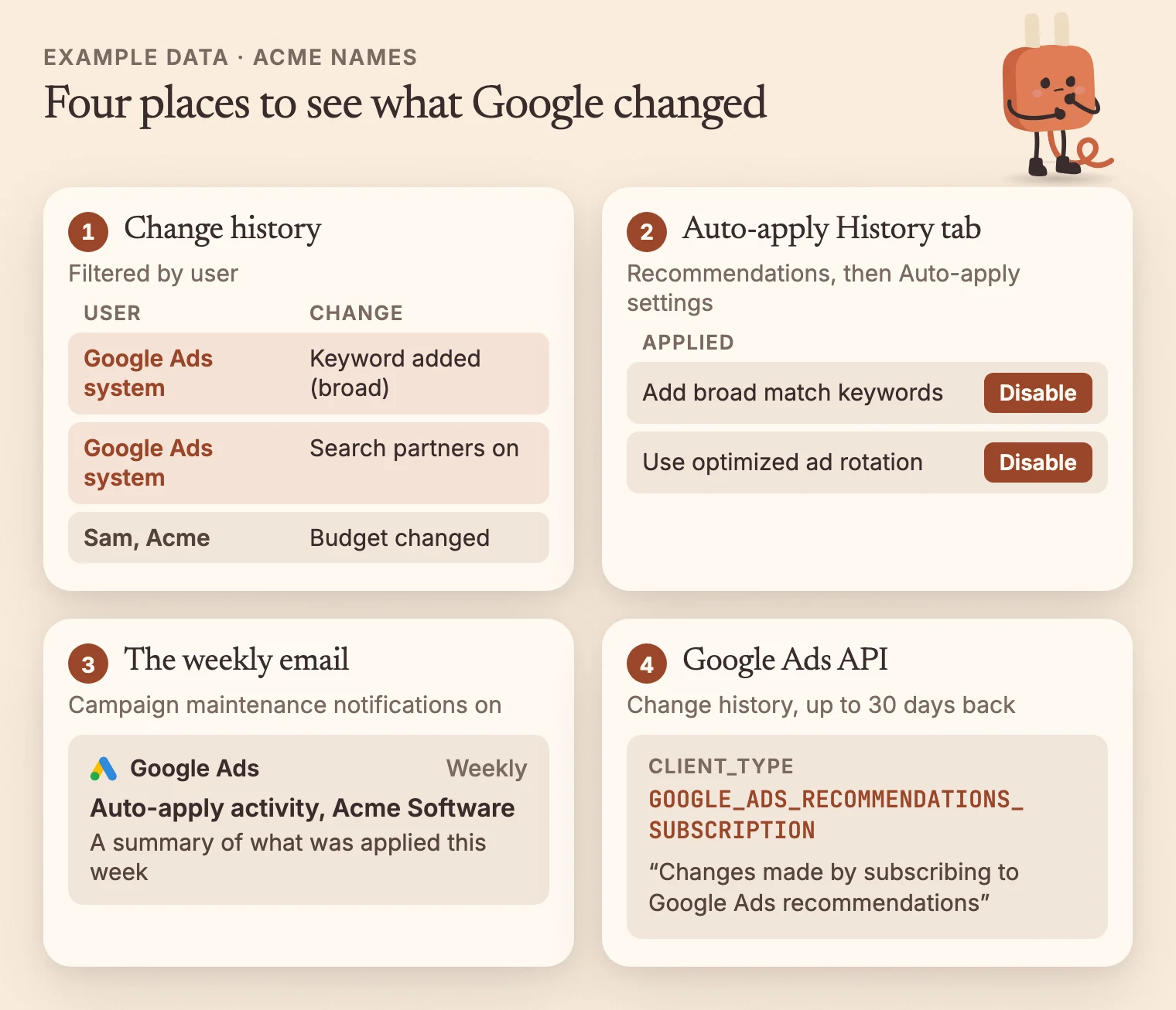
Change history in Google Ads is the place to start, and it isn't the only one. Four places show you what Google did:
- Change history. Filter or sort it by user. Google says changes by its automated or internal systems "may appear under users like 'ads-dartsearch-budget' or 'Google Ads system'", and change history also shows which user opted the account into auto-apply.
- The auto-apply History tab. Under Recommendations, then Auto-apply settings, the History tab lists what was applied and lets you disable a type from there.
- The weekly email. Turn on campaign maintenance notifications in your preferences, and Google emails a weekly summary of auto-apply activity. It's weekly, so read change history in between.
- The Google Ads API. Every change in the API's change history comes with a client type. Auto-applied changes are GOOGLE_
ADS_ RECOMMENDATIONS_ SUBSCRIPTION, "Changes made by subscribing to Google Ads recommendations". Recommendations someone applied are GOOGLE_ ADS_ RECOMMENDATIONS, rules are GOOGLE_ ADS_ AUTOMATED_ RULE and scripts are GOOGLE_ ADS_ SCRIPTS. Through the API, change history goes back 30 days.
Once a week, read the last 7 days of change history and look for any change made by a user who isn't on your team. If the same kind of change keeps appearing, find the switch behind it.
Governing Google Ads automation across client accounts
Running client accounts through an MCC turns every setting above into a governance question, times the number of clients.
Auto-apply is set per account, so every client under your MCC has its own switches. Ask Advisor isn't available in manager accounts. Rules and scripts do run from the manager account: rules on up to 1,000 accounts, scripts on up to 50 at a time.
Account safety is a principle for me: access should be scoped, visible, auditable and reversible. For Google's automation, a short policy for each client gets you most of the way there:
- What's allowed. For example: Smart Bidding yes, AI Max and Performance Max as experiments, auto-apply off.
- Who approves what. Budgets, targets and bid strategy changes need a named person's sign-off, with budgets and targets approved as exact figures, never as "raise it a bit".
- Who checks. One person reads each client's change history every week and owns the alarms.
- Who has access. Change history names whoever opted an account into auto-apply, so keep logins personal, never shared.
Put the policy in the onboarding pack, so the client knows what Google may change by itself before it happens. For the rest of a new client's account, an AI Google Ads audit covers structure, search terms, ads, budgets and tracking in one sitting.
Google Ads automation you set up and control
To me, the right Google Ads automation is the kind you set up yourself and stay in control of. It follows your rules and thresholds, and chases your idea of a good result (which conversions count, the target, the margin) inside the budget you set.
Left on its defaults, Google's automation is set up the way Google thinks an account should run. Google's measure of that is optimisation score, which goes up as you apply or dismiss its recommendations, whether or not the business makes any more money.
Automation you write yourself is the other kind. Automated rules and scripts are the long-standing way to do it, and my post-launch audit skill is a newer one: my own checks, with Claude doing the reading.
I built AdPlug to give PPC specialists and agencies control back over Google Ads automation, so you can optimise to your own rules and targets, not Google's defaults. You write your checks once, as a prompt or a Claude skill, and each time you run them, Claude or ChatGPT reads the accounts and proposes the changes. Which of them happen is still your call. The post-launch prompt in the next section is a good one to start with.
The quicker way: AdPlug's Google Ads MCP
Checking Google's automation by hand takes a while. For each account: open Recommendations and the auto-apply settings, read the History tab, filter change history by user, check each campaign's AI Max and network settings, and write it all down. Then do it again for the next client.
AdPlug's Google Ads MCP safely connects Google Ads to Claude or ChatGPT, so one prompt runs that check across every account. It reads each account's auto-apply settings, type by type, and the change history for the last 30 days, with who made each change and through what: the web interface, the API, automated rules, scripts, Google's recommendations or auto-apply.
It lists Google's own recommendations too, and applies or dismisses one only through a preview you approve. The same goes for switching an auto-apply type off, or AI Max's text customisation or final URL expansion on a campaign. On Google Ads, nothing runs without a preview.
AdPlug is read-only by default, and one connection covers every account under your MCC. Team owners can set Google Ads to read-only for each team member, so a junior can run the check without being able to change anything.
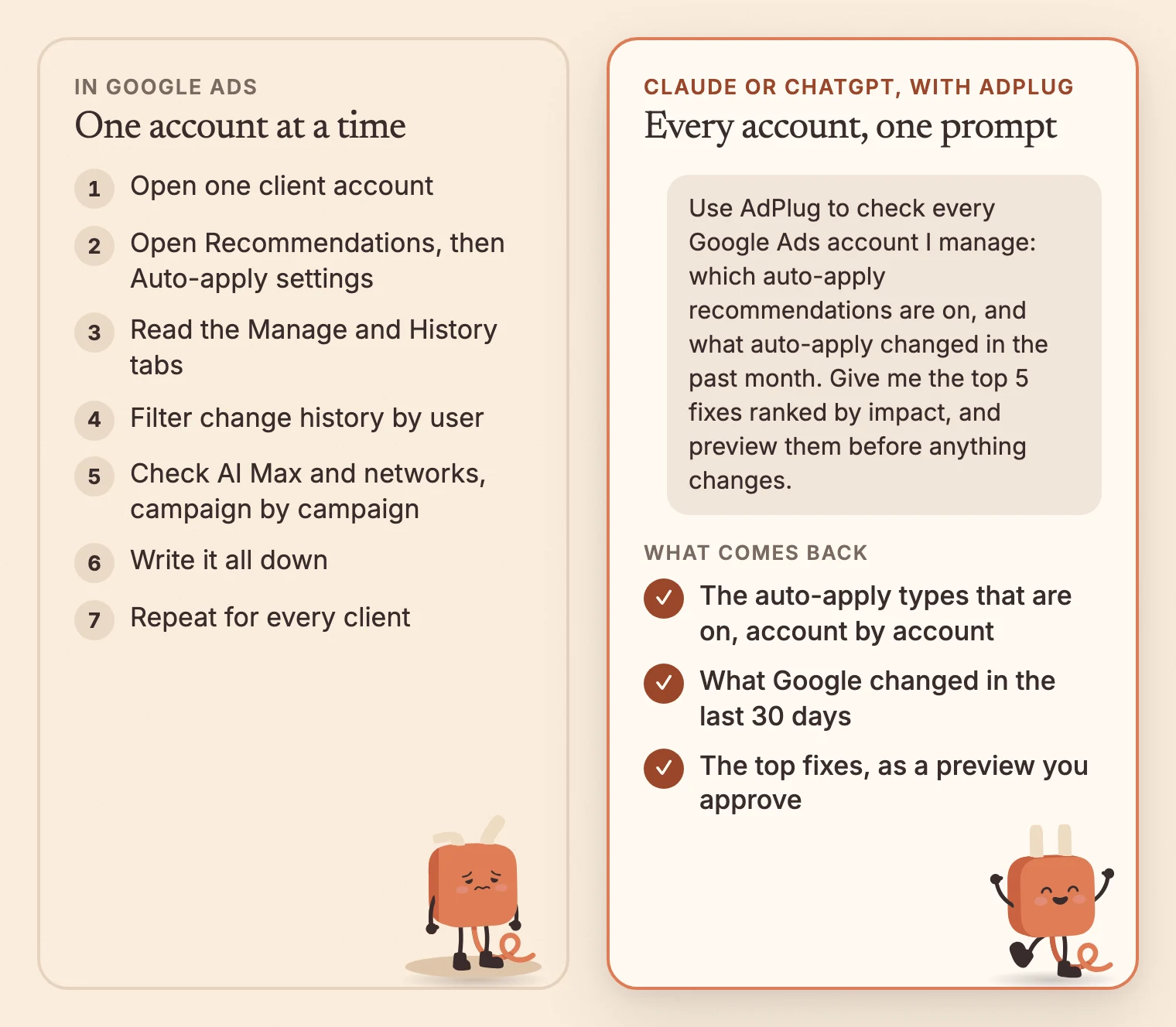
Here's the first prompt to run:
Use AdPlug to check every Google Ads account I manage: which auto-apply recommendations are on, and what auto-apply changed in the past month. Give me the top 5 fixes ranked by impact, and preview them before anything changes.

 Claude
Use AdPlug to check every Google Ads account I manage: which auto-apply recommendations are on, and what auto-apply changed in the past month. Give me the top 5 fixes ranked by impact, and preview them before anything changes.
google_ads_preview_mutation AdPlug - Google Ads
Preview · 3 Acme accounts · top 5 fixes
| # | Account | What Google did | The fix |
|---|---|---|---|
| 1 | Acme Software | Auto-apply added 38 broad match keywords to Generic | Pause the 38 and turn that type off |
| 2 | Acme Software | Auto-apply opted Generic into search partners | Search partners off on Generic |
| 3 | Acme Analytics | Auto-apply raised Demo's target CPA from $120 to $150 | Target CPA back to $120 |
| 4 | Acme Labs | AI Max's text customisation is on in Brand | Text customisation off in Brand |
| 5 | All three | 9 more auto-apply types still on | Turn them off |
Google changed 58 things across your three accounts in the last 30 days without anyone on your team, all through auto-apply, and AI Max's text customisation is on in Acme Labs' Brand campaign. These five fixes come first, ranked by impact. The 38 broad keywords on Generic spent $2,140 for 4 conversions, against $160 a conversion on the exact keywords they were copied from. Nothing changes until you say so.
Do all five.
google_ads_execute_mutationAdPlug - Google AdsDone. All five changes ran, auto-apply is off in all three accounts, and each change is in Google Ads' change history.
More prompts for Google's automation
Each of these reads first and previews any change. For AI Max's search terms:
Use AdPlug to read the search terms AI Max matched in my Search campaigns: which don't belong, what they cost and whether they converted. Preview the negatives, and tell me which ad groups would do better with search term matching off.
For Performance Max drifting into brand searches or channels that don't convert:
Use AdPlug to show where each Performance Max campaign's budget goes by channel, and how much goes on my own brand searches. Preview a fix where a channel spends without converting, or PMax is taking brand traffic my brand campaign should get.
For Smart Bidding, campaign by campaign:
Use AdPlug to check every Smart Bidding campaign: is it hitting its target, does it get enough conversions for its strategy, and is it learning or limited, and why? Tell me which would do better on a different strategy. Don't change anything yet.
And the post-launch check, the moment a campaign goes live:
Use AdPlug to check the Google Ads campaign I just launched: networks, location targeting (presence or interest), AI Max and final URL expansion, budget, bidding, which conversions count, ad approvals and whether the final URLs load. List anything that looks unintended, and preview the fixes.
You can start from $0. On AdPlug's free plan, Google Ads can be your one platform, with 500 AI requests in your first 5 days and then 30 a month, and changes can be previewed but not applied. Pro is $29 a month with 5,000 requests and 200 AI edits, every platform and a 7-day free trial (all plans are on the pricing page).
The Google Ads setup guide goes click by click, connecting Claude to Google Ads explains how the connection works, and everything else AdPlug does on Google Ads is on the Google Ads integration page.